 ForgeVPS
The ForgeVPS workspace
Edit code where it runs.
Create, edit, save, rename, and delete files on your VPS from your browser. Manage project folders and upload files in the ForgeVPS code editor.
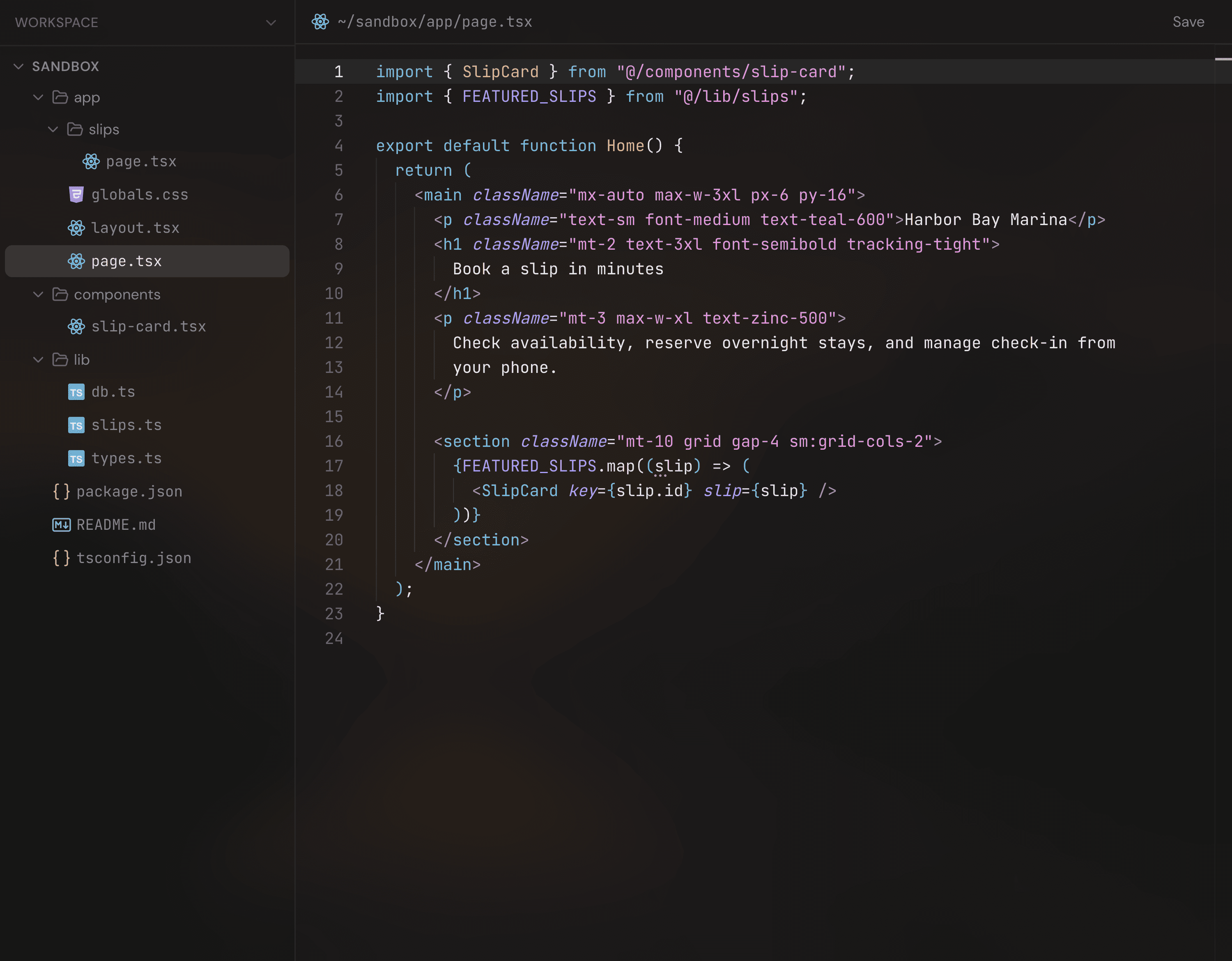
A browser code editor for files on your VPS
Create, open, edit, rename, and delete files on your server from a familiar file tree and code editor. Save your changes directly to the VPS and organize your project’s folders in the same workspace.
This is useful for inspecting a project, editing a script, or reviewing a file created by Claude Code or Codex CLI. Your project stays on the VPS. You can open the workspace from another computer or your phone when you need to check something.
Create, edit, and save a file
Open your connected VPS in ForgeVPS and choose Files. Create files and folders, edit their contents, rename them, and delete what you no longer need—all from the editor.
- Create a folder. In the file tree, right-click the folder where you want to work and choose New Folder…. Name it
editor-demo, or choose another name if that folder already exists. - Create a file. Right-click your new folder, choose New File…, and name it
hello.txt. - Write and save. Open the file, type a short sentence, and click Save. Your changes are written directly to the VPS.
- Edit it again. Change the sentence and save. Close the file’s editor tab, then reopen it from the tree to see the saved version.
- Rename or delete it. Right-click the file and choose Rename… to give it a new name, or Delete and confirm when you are finished with the example.
You can also use the New file, New folder, and Upload files buttons beside a workspace folder to add files to your project.
Move from AI-generated code to your own edits
An assistant’s output is easier to assess when you can inspect the files it actually changed. Start Claude Code or Codex CLI in a practice project. When it creates a file, navigate to that directory in Files, open it, and review the result.
Before editing a file the assistant is also changing, let its current task finish and reload the latest file. Two writers can overwrite one another’s work. Review the updated files in the editor before committing or deploying them.
Saving and deploying are separate steps
Save writes to the server path you opened. It does not automatically create a Git commit, push a repository, or rebuild an application. Whether a running app picks up the change depends on that app’s development or deployment setup.
For applications deployed from GitHub, make durable changes in the source repository and redeploy through the normal workflow. An edit made only inside a generated build or deployment directory can disappear on the next deployment.
What to check if an edit does not appear
- Wrong path: check the folder in the file tree and the path shown above the editor. Make sure you opened the intended project’s copy of the file.
- Unsaved changes: finish saving, then reopen the file to check the server copy.
- Another writer: check whether an assistant, deployment, or another browser session changed the same file.
- App still showing an old version: check whether the project needs a build or restart after editing its source.
Choose the editor for your workflow
ForgeVPS fits a workflow that combines server files, a terminal, PostgreSQL, and app management. If your priority is a specific IDE extension or debugger, check that requirement against a dedicated browser IDE or desktop editor. Our VPS workspace comparison explains those choices.