 ForgeVPS
Work with your VPS
Run Claude Code on your VPS.
Install Claude Code on a VPS, complete remote sign-in, and open the same terminal from your phone. A practical ForgeVPS walkthrough with troubleshooting.
Keep a development project on your VPS and reach Claude Code through a browser terminal. This walkthrough covers installation, remote login, a small practice task, and returning to the session from your phone.
Prepare your workspace
You need a connected Ubuntu or Debian VPS, a working ForgeVPS terminal, and your own account access for the coding assistant. The VPS hosts the command-line tool and your files; model requests go to the assistant’s provider. ForgeVPS access does not include server hosting or AI usage.
If you still need a machine, start with the first VPS guide. For an existing connection, open Terminal and run whoami and pwd to check where commands will run. Terminal needs tmux on the VPS; enable Workspace tools where available or have it installed before continuing.
ForgeVPS currently uses root-backed access. Keep the assistant’s permission checks enabled, read its proposed commands, and use the practice directory below for your first task.
1. Check or install Claude Code
claude --versionIf this prints a version, continue to the project step. ForgeVPS’s Developer CLIs setup option includes Claude Code; installation and account login are separate. If you install it yourself, Anthropic documents this Linux installer:
curl -fsSL https://claude.ai/install.sh | bashThis downloads and executes Anthropic’s installer on the VPS. Check the current installation requirements, including memory and supported Linux versions. Reopen Terminal if needed, then check claude --version again.
2. Start in a new practice directory
demo_dir=$(mktemp -d "$HOME/claude-vps-demo.XXXXXX")
cd "$demo_dir"
pwd
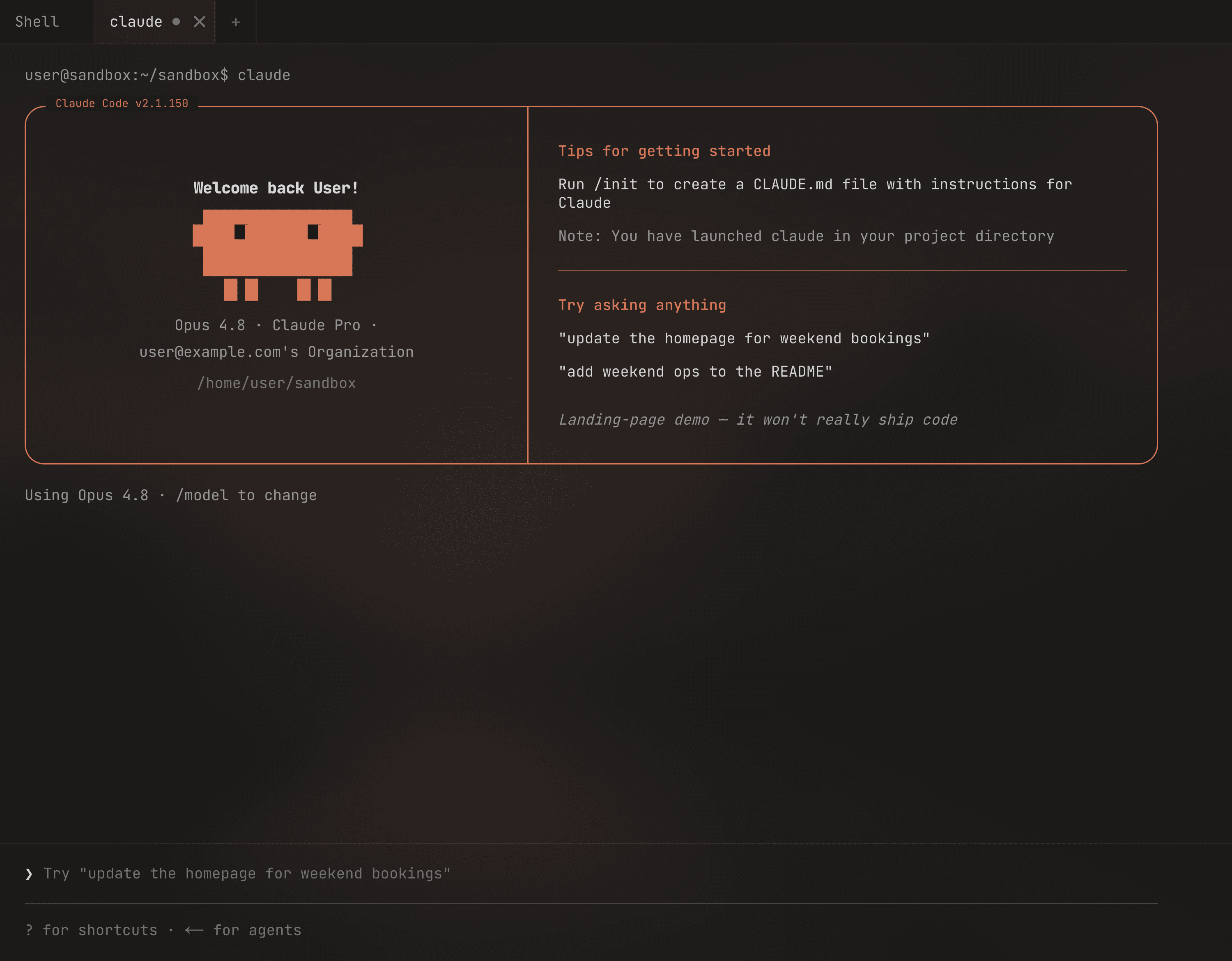
claude
Each run creates a fresh folder. Note the full path printed by pwd; you will open that folder in Files later. Review Claude’s directory trust prompt before proceeding.
3. Complete remote sign-in
Follow Claude’s account prompt. If a browser does not open on the VPS, open the displayed login URL on your own device. If the browser returns a code, enter it in the waiting terminal prompt. Use your own eligible account and keep the login link and code private. See Anthropic’s authentication instructions for your account type.
Signing in to ForgeVPS does not sign you in to Claude. The assistant runs as the server user who launched it, and account credentials can remain on that machine.
Make a small file you can inspect
Give Claude this first task in your new practice directory:
Create an index.html file with a heading and a short paragraph about a VPS practice project. Use plain HTML and CSS. Do not install packages, start a server, or deploy anything. Explain the changes.
Review the requested actions. When the task finishes, open Files in ForgeVPS, navigate to the exact directory printed by pwd, and open index.html. Check its contents before making your own edit.
For an existing project, start with an explanation or a focused change and inspect the diff before committing. Follow the browser editor walkthrough to create, edit, and save files directly in Files. Creating this practice file does not publish a website.
Return from your phone or another browser
- Leave the terminal tab inside ForgeVPS open. Close the browser window or put the first device aside.
- Sign in to ForgeVPS from your phone’s browser.
- Choose the same machine and its existing terminal tab. Check the task’s latest output and any pending permission request.
ForgeVPS uses tmux sessions on the VPS, which ordinarily survive a disconnected browser. Closing a terminal tab inside ForgeVPS ends that session. A reboot, stopped process, or exhausted memory can also end a running task.
Phone access is useful for a short instruction or progress check. Use a larger screen for detailed code review. Keep login codes, account details, and private project files out of any screenshots you share.
Troubleshooting
- Command not found: check the installation result and open a new shell. If the native installer reports a PATH change, follow its instructions. Do not repeat unrelated server setup steps.
- The browser callback fails: return to the terminal and use the login-code flow described above. Check the official authentication page if your account uses a different flow.
- Claude reads the wrong project: exit it, check
pwd, change to the intended directory, and start it again. - The task is waiting: inspect the permission prompt or account-limit message. A persistent terminal cannot approve a decision for you.
Claude’s own mobile option
Claude Code Remote Control also connects a running session to Claude’s web or mobile interface. Check its separate account and environment requirements. It is worth considering if you only need access to Claude. ForgeVPS adds a general-purpose terminal, file editor, and server tools around your VPS project.
Prefer OpenAI’s assistant? Follow the Codex CLI walkthrough for its installation and remote authentication steps.